Card editor
Design the level card and the welcome banners layer by layer, or start from a template.
The card editor draws two kinds of images:
- the level card, sent by
/level(Dashboard → Levelling → Level card); - the welcome banners, attached to join messages, one per join type (Dashboard → Join messages → Welcome banner).
Both use the same editor, the same layers and the same limits.
Start from a template#
Click Browse under Start from a template and pick a design:
| Level cards | Welcome banners |
|---|---|
| Midnight, Paper, Arcade, Aurora, Neon grid, Gold league | Classic, Centered, Daylight, Galaxy, Wave, Golden ticket |
Three templates of each kind fit a free server. Applying a template replaces your layers; you can undo it.
Layers#
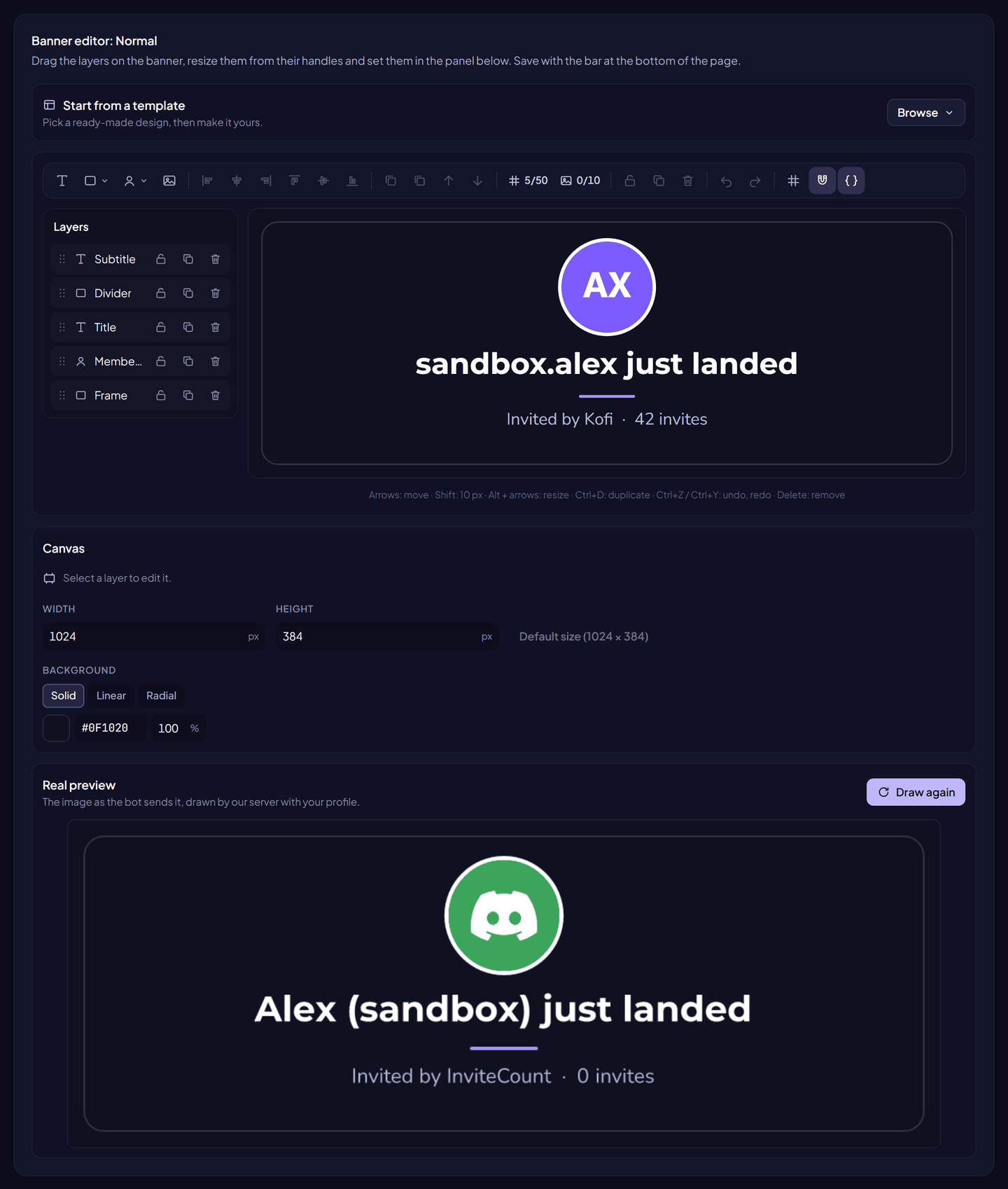
The canvas is a stack of layers, from the bottom to the top. Add them from the toolbar:
| Layer | What it shows | Main options |
|---|---|---|
| Text | Any text, with variables | Font, size, bold, colour, alignment, line height, letter spacing, capitals, shadow |
| Shape | Rectangle, circle, ellipse or triangle | Fill (solid, linear or radial gradient), border, corner radius |
| Avatar | Member avatar, inviter avatar or server icon (the level card shows the member only) | Circle or square, border |
| Image | An image from an https:// link | Fill the box or show whole, corner radius, blur |
| Progress bar | Level card only: fills up with the member's XP towards the next level | Bar and track fills, radius |
Every layer has a position, a size, a rotation, an opacity, and can be hidden, locked, duplicated or deleted.
Edit the layers: drag them on the canvas, resize them from their handles, and set their options in the panel below. Use the alignment and ordering buttons of the toolbar, the grid and the snapping guides.
Shortcuts: arrows move the selected layer (Shift: 10 px), Alt + arrows resize it, Ctrl+D duplicates, Ctrl+Z and Ctrl+Y undo and redo, Delete removes it.
The canvas itself has a size (300 to 1,600 px wide, 100 to 1,000 px high) and a background (solid colour or gradient).
Preview and save#
- The editor shows sample values instead of variables. Turn it off in the toolbar to see the variable names.
- Draw the preview asks our server to draw the real image, with your profile as the member.
- Save with the bar at the bottom of the page. A design that uses premium features can't be saved on a free server: the editor lists what to change.
Free and Premium#
| Free | Premium | |
|---|---|---|
| Layers per design | 6 | 50 |
| Image layers (avatars don't count) | 1 | 10 |
| Shapes | Rectangle | Rectangle, circle, ellipse, triangle |
| Fonts | 8: Inter, Poppins, Montserrat, Rubik, Lato, Nunito, Oswald, Playfair Display | All 18, adding Space Grotesk, Bebas Neue, Anton, Orbitron, Righteous, Pacifico, Lobster, Press Start 2P, Bangers, Caveat |
| Rotation, gradients, image blur | — | ✓ |
| Welcome banner types | Normal | Normal, Vanity, Bot, No permission, Unknown |
Level cards made before the editor#
If your server customized the old level card (colours, overlay, background), the editor starts from a design converted from those settings. Change it freely: it is saved like any other design.
FAQ#
Why is my image not shown on the card?
Images must come from a public https:// link, be an image file of 4 MB at most, and load within 5 seconds. Private or local addresses are refused.
Which variables can a text layer use?
The level card and the welcome banner have their own lists: see Card variables. An unknown variable stays as typed.