Server reports
Get a growth report posted in a channel every month, or every week with Premium.
A server report sums up the growth of the last period in a channel: joins, leaves, net growth and the best inviters.
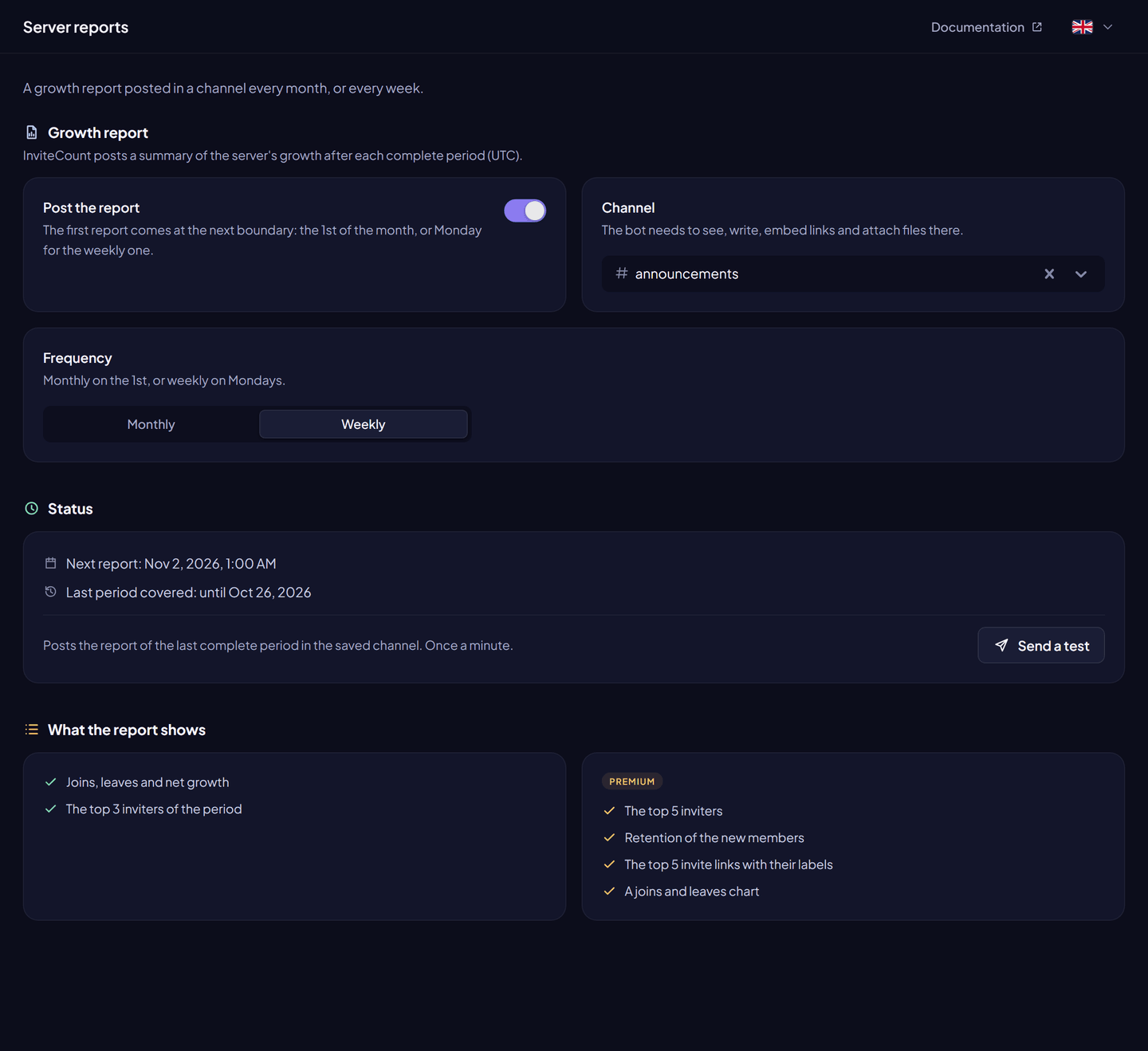
Turn it on#
From the dashboard:
- Dashboard → Server reports.
- Turn on Post the report.
- Choose the Channel and the Frequency.
- Click Save changes. Send a test posts the report of the last complete period.
With a command: /report setup channel:#channel [frequency]. /report preview shows the last report in the current channel; /report disable stops the reports.
The first report comes at the next period boundary.
Settings#
| Setting | What it does | Free | Premium |
|---|---|---|---|
| Frequency | Monthly: on the 1st, about the previous calendar month. Weekly: on Mondays, about the previous week. | Monthly | Monthly or weekly |
| Channel | Where the report is posted. | ✓ | ✓ |
Content#
| Free | Premium | |
|---|---|---|
| Joins, leaves, net growth | ✓ | ✓ |
| Top inviters of the period | 3 | 5 |
| Retention | — | ✓ |
| Top 5 invite links with their labels | — | ✓ |
| Chart of joins and leaves | — | ✓ |
Top inviters count real, credited joins. Hidden members are left out. Dates are in UTC.
Good to know#
- Each period is posted once, even if the bot restarts. A report missed while the bot was offline is posted when it comes back.
- If the bot can no longer post (channel deleted, or missing View Channel, Send Messages, Embed Links or Attach Files), the report turns itself off. The dashboard shows why. Fix the problem and save the settings again.
- A weekly report becomes monthly when the server loses Premium.