Join and leave messages
Announce new members with who invited them, say goodbye when they leave, and send a private welcome message.
InviteCount can post three kinds of messages:
- a join message in a channel when a member joins, with who invited them;
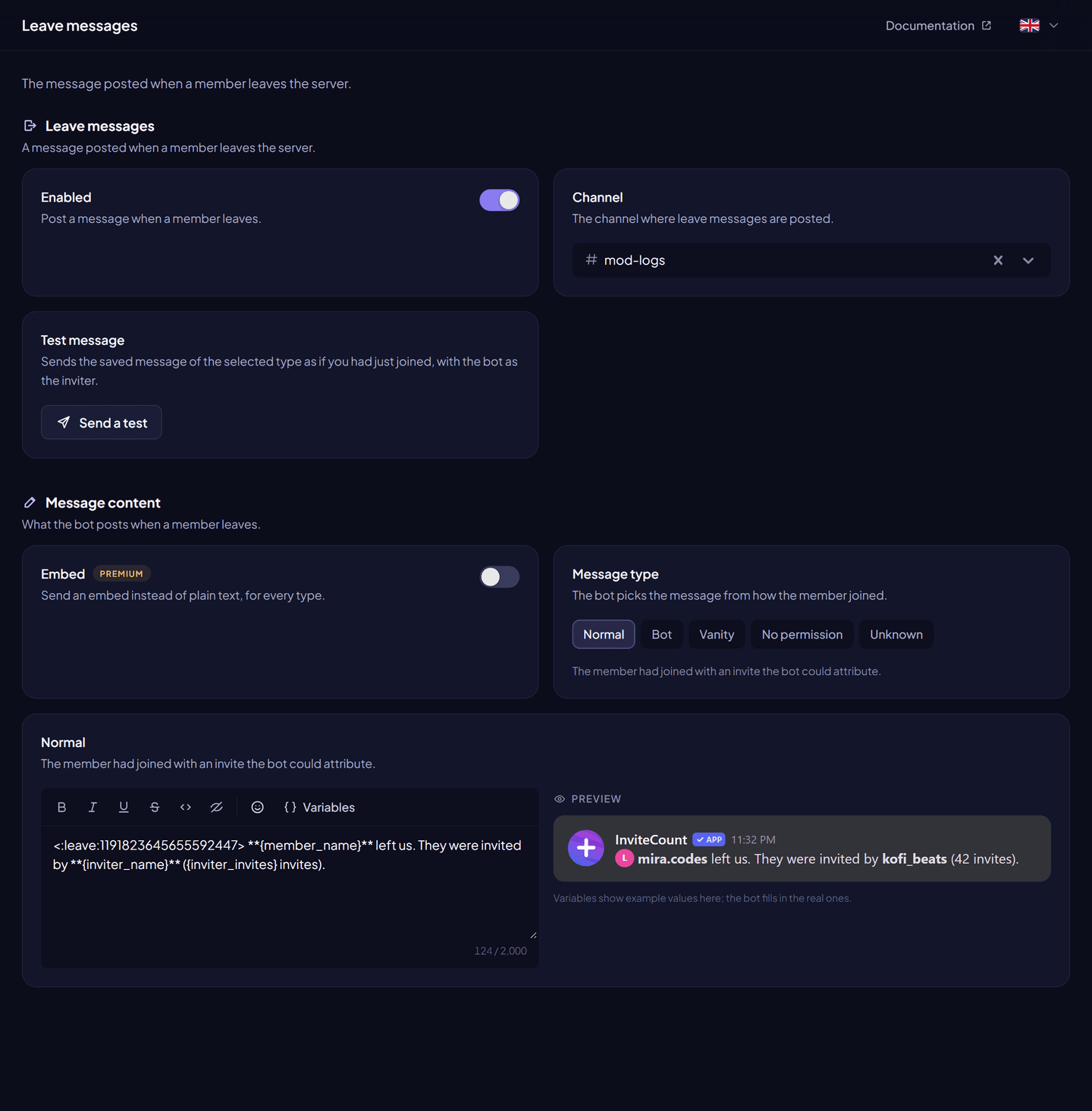
- a leave message in a channel when a member leaves;
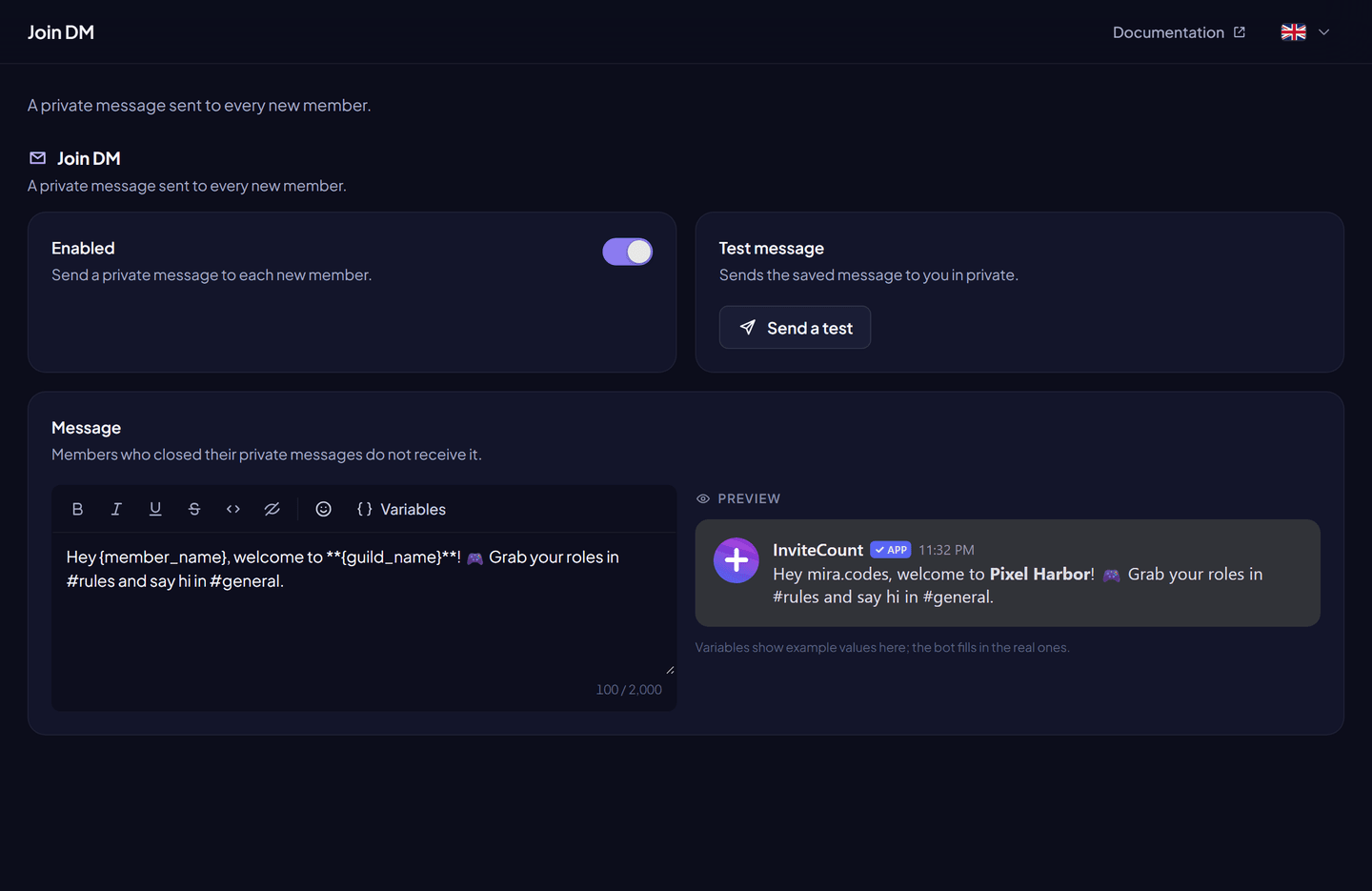
- a join DM, a private message sent to each new member.
Text messages are free for every join type. Embeds and the banners of the special join types need Premium.
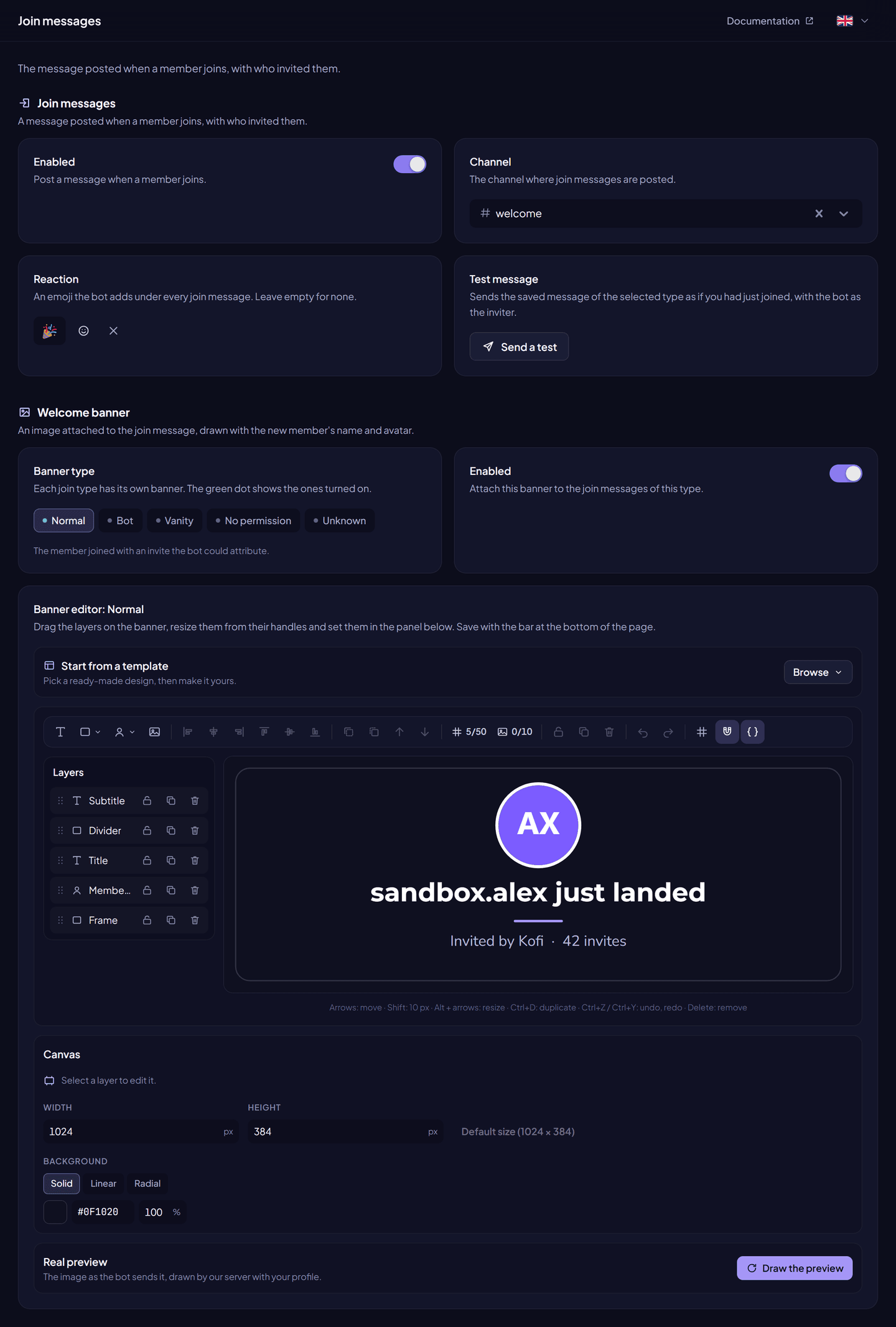
Turn on join messages#
From the dashboard:
- Dashboard → Join messages.
- Turn on Enabled.
- Choose the Channel.
- Under Message content, pick a Message type and write its text. Repeat for each type you use.
- Click Save changes, then Send a test.
With a command: /setup (fastest), or /welcome channel #channel then /welcome on.
Leave messages work the same way: Dashboard → Leave messages, or /leave channel and /leave on.
Message types#
The bot picks the message from how the member joined. Each type has its own text (and its own embed and banner).
| Type | Join message is used when… | Default join text |
|---|---|---|
| Normal | The member joined with an invite the bot could attribute. | {member_mention} joined; invited by {inviter} ({inviter_invites} invites) |
| Vanity | The member joined with the server's vanity link. | {member_mention} joined using vanity link. |
| Bot | A bot was added to the server. | {member_mention} joined using OAuth. |
| No permission | The bot could not read the invites. | {member} joined the server, but I do not have enough permissions to track who invited them. |
| Unknown | The bot could not tell who invited the member. | {member} joined the server, I cannot see who invited {member} to this server. |
Leave messages use the type of the original join: a member who joined with the vanity link gets the Vanity leave message.
Settings#
Join messages#
| Setting | What it does | Free | Premium |
|---|---|---|---|
| Enabled | Turns join messages on or off. | ✓ | ✓ |
| Channel | Where join messages are posted. | ✓ | ✓ |
| Reaction | An emoji the bot adds under each join message (a Unicode emoji or an emoji of your server). Also /welcome reaction. | ✓ | ✓ |
| Message text | One text per join type, up to 2,000 characters, with variables. | ✓ | ✓ |
| Embed | Sends an embed instead of the text, one per join type. See Embeds and variables. | — | ✓ |
| Welcome banner | An image attached to the join message. See below. | Normal type | Every type |
Leave messages#
| Setting | What it does | Free | Premium |
|---|---|---|---|
| Enabled | Turns leave messages on or off. | ✓ | ✓ |
| Channel | Where leave messages are posted. | ✓ | ✓ |
| Message text | One text per type, up to 2,000 characters. | ✓ | ✓ |
| Embed | Sends an embed instead of the text. | — | ✓ |
Join DM#
| Setting | What it does | Free | Premium |
|---|---|---|---|
| Enabled | Sends a private message to each new member. | ✓ | ✓ |
| Message | The text of the DM, up to 2,000 characters, with the same variables as the join message. Default: Hi, we are glad you joined our server! | ✓ | ✓ |
Members who closed their DMs don't receive it.
Welcome banner#
The welcome banner is an image the bot draws for each new member and attaches to the join message: their name, avatar, the member count, the inviter, or anything you design.
- Dashboard → Join messages → Welcome banner.
- Choose a Banner type (one per join type). A green dot shows the banners turned on.
- Turn on Enabled for that type.
- Start from a template or design it in the card editor.
- Click Save changes, then Send a test.
| Free | Premium | |
|---|---|---|
| Banner of the Normal type | ✓ | ✓ |
| Banners of the Vanity, Bot, No permission and Unknown types | — | ✓ |
| Editor limits (layers, images, shapes, fonts, effects) | Free limits | Premium limits |
The banner follows the card editor limits. If the bot can't draw the banner within 8 seconds, the message is sent without it.
Test your messages#
- Dashboard: Send a test on each page, for the selected type. It uses the saved settings.
- Commands:
/welcome test type:<type>,/leave test type:<type>,/joindm test.
In a test, you are the member and the bot is the inviter. Invite variables show test values (code -1, counters at 0).
Commands#
| Command | What it does |
|---|---|
/welcome on, /welcome off | Turns join messages on or off. |
/welcome channel <channel> | Sets the channel. |
/welcome text <type> [text] | Sets the text of a type. Without text, goes back to the default. |
/welcome reaction [emoji] | Sets the reaction. Without emoji, removes it. |
/welcome test <type> | Sends a test. |
/welcome show | Shows the current settings. |
/welcome gui | Opens a form with the five texts. |
/leave on, off, channel, text, test, show, gui | Same for leave messages. |
/joindm on, off, text <text>, test, show, gui | Same for the join DM. /joindm text also turns it on. |
All need Administrator. Except /welcome reaction, these commands will be removed later: the dashboard is the recommended way. Full details: Message and level commands.
Permissions#
The bot needs, in the channel: View Channel, Send Messages, Embed Links (embeds), Attach Files (banners), Use External Emojis, and Add Reactions with Read Message History for the reaction.
FAQ#
Can I mention the member without pinging them?
Use {member_name} or {member_display_name} instead of {member_mention}. Mentions in a message always ping, except @everyone and @here, which the bot never pings.
Why does my embed not show the join message text?
When the embed is on, it replaces the text for that type. Put everything you need in the embed.
What happens to embeds and banners when Premium ends?
They stay saved. Messages go back to their text, and only the banner of the Normal type keeps being sent if it fits the free limits. Everything comes back with Premium.