The dashboard
Log in to the dashboard, find your way around it and save your changes.
The dashboard at invite-count.xyz/dashboard is where you configure InviteCount. Every module has its own page. Most settings exist only on the dashboard.
Log in#
- Open invite-count.xyz/dashboard and click Login.
- Discord asks you to authorize InviteCount. The dashboard only asks for your identity and your server list. It never sees your password or your email address.
- You come back to the dashboard, logged in. Your session lasts up to 7 days.
Choose a server#
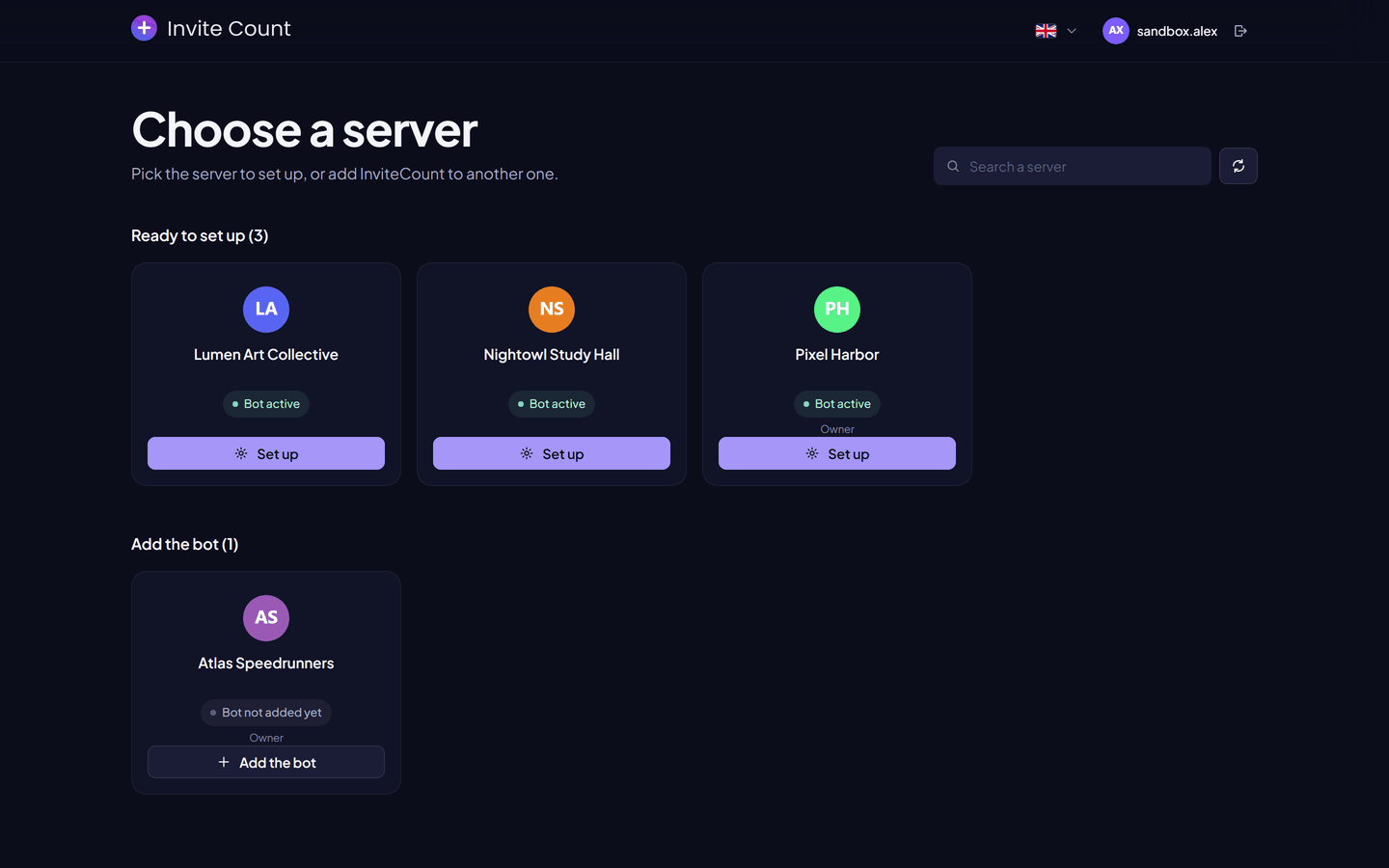
The first page lists your servers in two groups:
- Ready to set up: servers where the bot is present. Click Set up to open them.
- Add the bot: servers you manage where the bot is missing. Click Add the bot to invite it.
You only see servers where you have the Manage Server permission. If a server is missing, check your permissions on it, then click Refresh the list.
Find your way around#
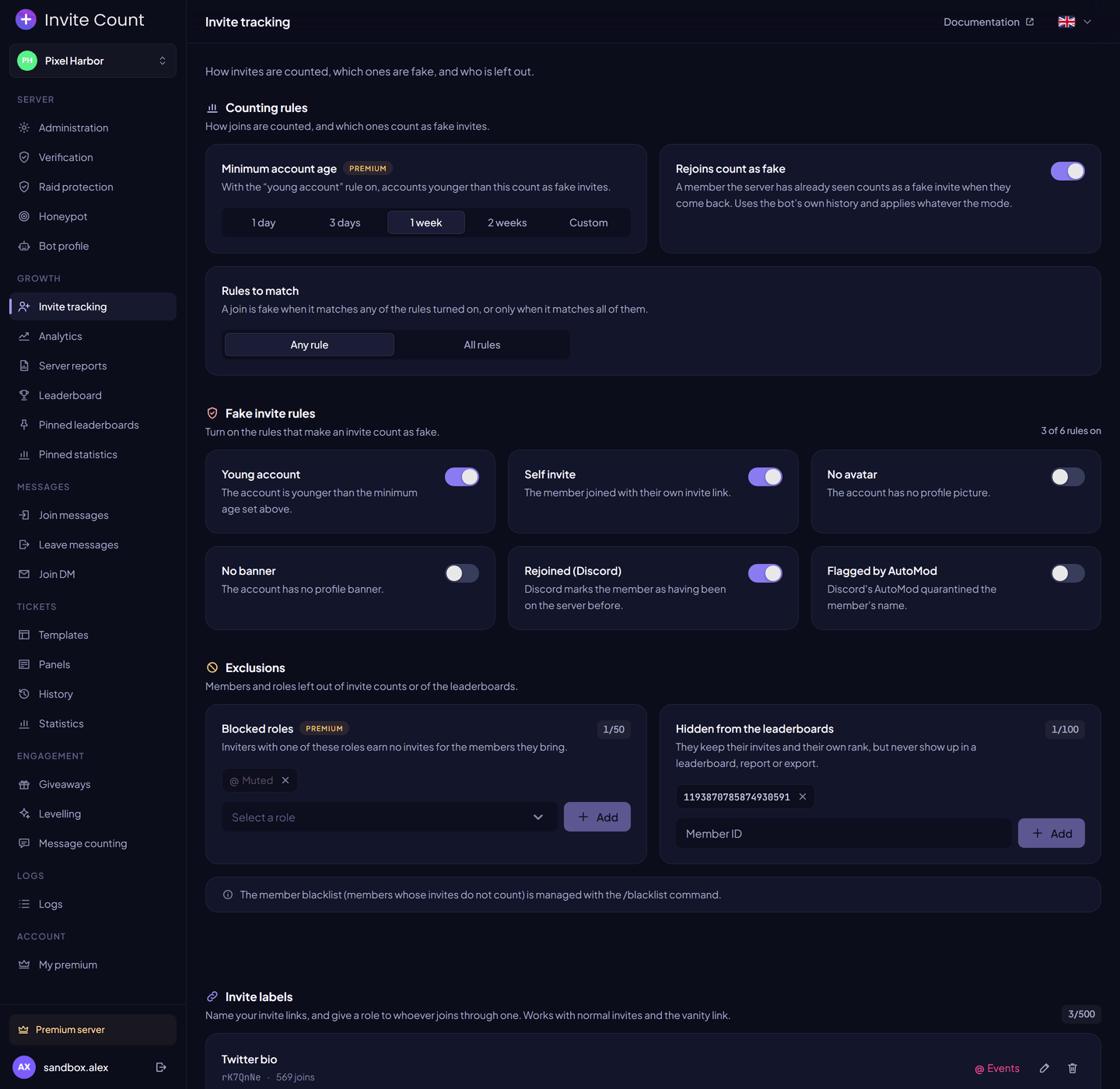
The sidebar on the left groups the module pages:
| Group | Pages |
|---|---|
| Server | Administration, Verification, Raid protection, Honeypot, Bot profile |
| Growth | Invite tracking, Analytics, Server reports, Leaderboard, Pinned leaderboards, Pinned statistics |
| Messages | Join messages, Leave messages, Join DM |
| Tickets | Templates, Panels, History, Statistics |
| Engagement | Giveaways, Levelling, Message counting |
| Logs | Logs |
| Account | My premium |
At the top of the sidebar, the server selector lets you switch to another server. At the bottom, a badge shows whether the server has Premium, next to your account and the logout button.
The header of each page has a Documentation link and the language menu. The dashboard is available in 16 languages: English, French, Spanish, Portuguese, German, Italian, Russian, Polish, Turkish, Japanese, Korean, Chinese, Hindi, Arabic, Indonesian and Vietnamese.
Save your changes#
Most pages work the same way:
- Change the settings you want.
- A bar appears at the bottom of the screen: You have unsaved changes.
- Click Save changes to apply them, or Reset to go back to the saved values.
Some actions apply at once and don't use the bar, for example sending a verification panel, creating a giveaway, posting a pinned leaderboard or publishing a ticket panel. They say so on their button.
Changes reach the bot immediately: the next join, message or ticket uses the new settings.
Free and Premium settings#
Settings reserved for premium servers carry a Premium badge. On a free server you can see them, but you can't change them. Lists with a limit show a counter, for example 1 of 3 used.
See Limits for every free and premium value, and Premium to upgrade a server.
Who can use the dashboard#
You need the Manage Server permission on the server, and the bot must be on it. A few actions ask for Administrator, for example starting a lockdown. Ticket transcripts follow their own access rules (see Tickets).