Panels
Create the messages members use to open tickets, with buttons or a menu, and opening hours.
A panel is the message members use to open a ticket. Dashboard → Tickets → Panels.
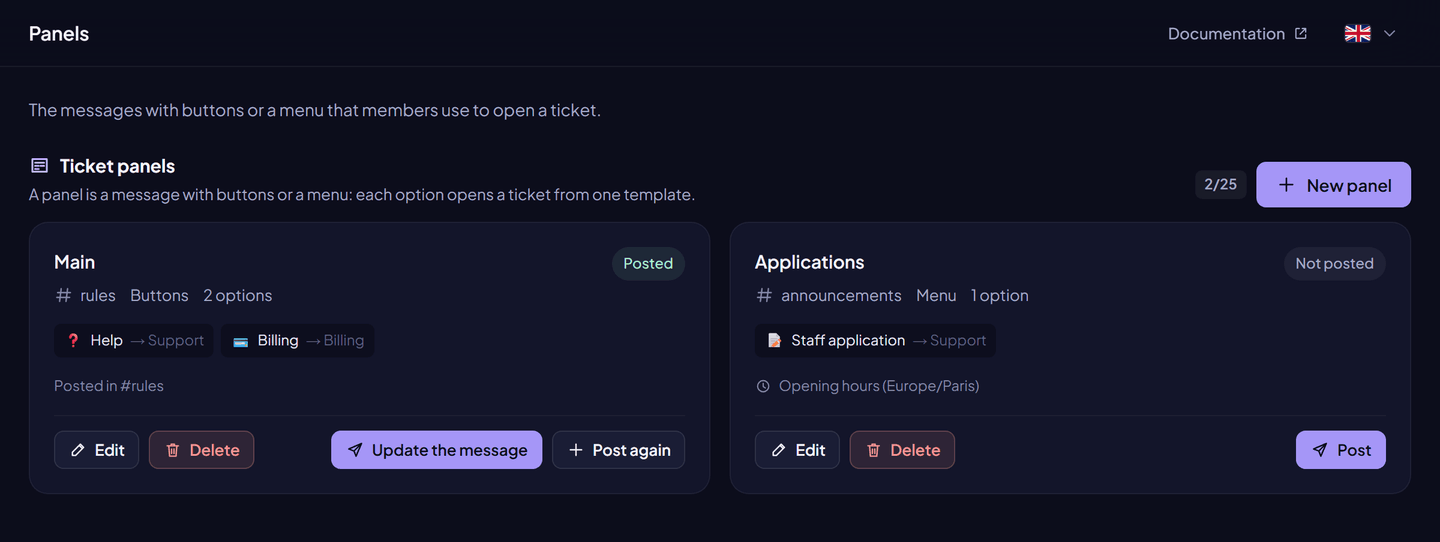
Create a panel#
- Click Create.
- Give it a Name and choose the Channel.
- Choose the Type: Buttons (one button per option) or Menu (a drop-down list, with a placeholder up to 150 characters).
- Write the Message: a text (2,000 characters) and/or an embed.
{server}shows the server name. - Add Options. Each option has a label (80 characters), an emoji, and a button colour or a short description (100 characters), and opens a ticket from one template.
- Click Save, then Send.
Editing a panel doesn't change the message already posted: click Send again to update it. It edits the message in place, or posts a new one if the channel changed.
| Free | Premium | |
|---|---|---|
| Panels | 3 | 25 |
| Options per panel | 3 | 25 |
| Images in the panel embed | — | ✓ |
| Tickets by InviteCount mention | Shown | Removed |
| Opening hours | — | ✓ |
Opening hours (Premium)#
Outside its hours, a panel refuses new tickets with your closed message (500 characters).
- Choose a time zone (for example
Europe/Paris) and weekly time ranges. - A range that ends before it starts runs past midnight (22:00 → 02:00).
- Roles that bypass the hours can open tickets at any time.
- Opening hours turned on with no range means the panel is always closed.
Deleting a panel#
Deleting a panel takes its message down. A template can't be deleted while a panel uses it or while it has open tickets.